Our Products
 Loans
Loans
 Cards
Cards
 Insurance
 Investment
 Stock Market
 Electronics Mall
 CIBIL Score
 Knowledge Centre
 Calculators
Our Services

 Do not call
 En
En
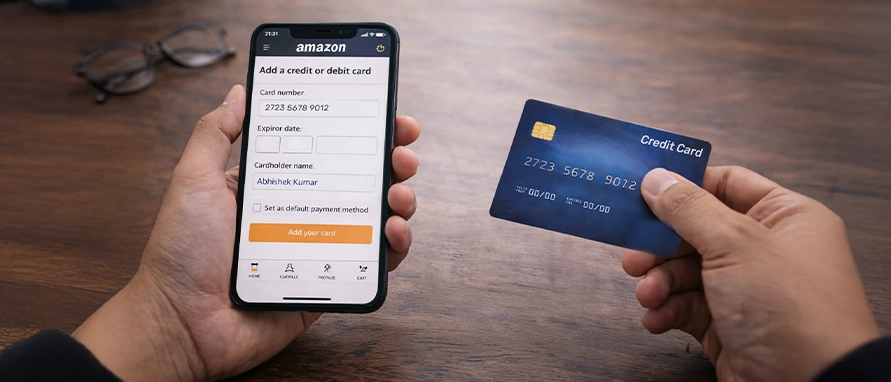
Table of Contents
As a frequent Amazon shopper, you could benefit from having your credit card details saved securely on the portal. This can help complete purchases faster, manage subscriptions, and access card‑specific offers without re‑entering details each time. Whether you use the Amazon mobile app or the Amazon website, the process to add a credit card is straightforward and follows the same core logic. Understanding how to add a credit card on Amazon safely, and how to manage saved cards for smoother shopping can be helpful. The process can be completed securely using the app or a desktop browser.
To add a credit card in Amazon using the mobile app, follow these steps:
Open the Amazon app and sign in to your account
Tap the menu icon and select Your Account
Choose Payment Options and then tap Add a card
Enter the card number, expiry date, and cardholder name
Provide the billing address linked with the card
Verify the card using the one-time password (OTP) sent by your bank
After successful verification, the card is saved for future use. This method also supports users who want to know how to add credit card details in Amazon without visiting a desktop browser.
Some users prefer adding payment information while placing an order. Check how to add a credit card to amazon account during checkout.
Add items to your cart and proceed to checkout
Under the payment section, choose Add a new card
Fill in the required card details and billing address
Complete verification using the OTP sent by the bank
Select the option to save the card for future purchases
This method supports users looking for how to add a credit card to an Amazon account while completing an active order.
You can also add a credit card while placing an order. Follow these steps:
During checkout, choose Credit/Debit Card as the payment method
Click add a new credit or debit card
Enter the card details, including number, expiry date, CVV, and billing address
Confirm the information and proceed to payment
The bank may ask for an OTP or 3D Secure approval; complete that step to authorise the transaction
After the first successful payment, Amazon usually saves the card for future use, which is how to add a new credit card to Amazon without visiting the account settings separately
This method is useful if you want to test a card on a small purchase before using it regularly.
Adding a credit card to your Amazon account enables one‑click checkout, where you can place orders with minimal steps. Saved cards also help in managing subscriptions, auto‑renewals, and EMI purchases without re‑entering payment details each time.
You can access bank and card offers, such as cashback, instant discounts, or no‑cost EMI, directly at checkout. For frequent shoppers, adding credit card details in Amazon simplifies order placement and reduces checkout errors.
Users may face problems when learning how to add a credit card in amazon. Common causes include:
Incorrect card number or expiry date
OTP delay or network issues
Unsupported card network or bank
Expired or blocked card
Temporary server errors at the payment gateway
Rechecking details and retrying later usually resolves these issues. Contacting the issuing bank can help when verification fails.
Users who want to understand how to add credit card in an Amazon account should also know how to manage saved cards.
To update or remove a card:
Open Your Payments in the account section
Select the saved card
Choose Edit to change details or Remove to delete it
Confirm the action using authentication if required
This ensures that only valid and active cards remain stored.
Amazon supports major credit card networks such as Visa, Mastercard, RuPay, and American Express, depending on the country and bank. Many Indian banks like HDFC Bank, Kotak Mahindra Bank, ICICI Bank, Axis Bank, and SBI Bank are accepted, along with select international issuers.
To properly manage saved credit cards on Amazon, use these helpful practices:
Disable auto-save if sharing your device
Remove unused cards from payment settings
Check transaction history regularly
Keep only one primary card for faster selection
These steps help reduce misuse and improve payment control.
Saving card details on Amazon is considered safe due to encryption, tokenisation, and OTP-based verification that protect user data during transactions.
Users can enter card details at checkout, complete OTP verification, and select the option to save the card for future orders.
Amazon allows users to store more than one credit card and choose the preferred card at the time of payment.
Users can remove saved cards from the Your Payments section by selecting the card and confirming the delete option.
Amazon supports international cards from major networks for eligible orders, subject to bank and country restrictions.
A card may be rejected due to incorrect details, expired validity, unsupported bank network, or temporary payment gateway issues.


Most Viewed

Academy by Bajaj Markets

 47202
47202

Navigate the tax maze with ease! Uncover Income Tax 101, demystify jargon with Terms for Beginners, and choose between Old or New Regimes.
 165541
Unlock the world of credit! From picking the perfect card to savvy loan management, navigate wisely.
 97881
97881
Money Management and Financial Planning covers personal finance basics, setting goals, budgeting...
 28606
28606
Explore the investment cosmos! From beginner's guides to sharp-witted strategies, explore India's treasure trove of options.
 18764
18764
Discover essential insights on various types of insurance in India.
 4584
4584
Welcome to Tech in Finance, where we explore the exciting intersection of technology and finance...












 Academy