Our Products
 Loans
Loans
 Cards
Cards
 Insurance
 Investment
 Stock Market
 Electronics Mall
 CIBIL Score
 Knowledge Centre
 Calculators
Our Services

 Do not call
 En
En
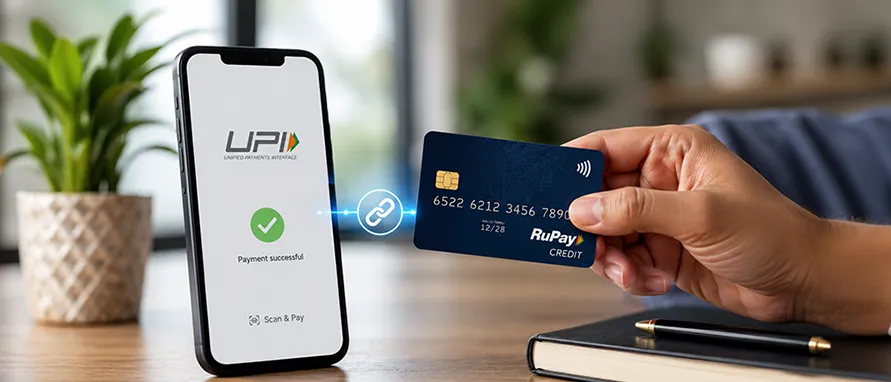
Table of Contents
RuPay credit card UPI linking allows you to connect your RuPay credit card to a UPI-enabled app. This lets you make payments directly using your credit card instead of a bank account.
Once done, your UPI linked RuPay credit card can be used to scan QR codes, pay merchants, and complete online transactions. The payment is processed through the UPI system, but the amount is billed to your credit card.
This feature is currently supported only for RuPay credit cards issued by select banks. You also need a UPI app that supports credit card linking, such as PhonePe or Google Pay.
Unlike debit-based UPI payments, your spending is billed later as part of your credit card cycle. This gives you short-term credit while still using the familiar UPI interface.
You can link your RuPay credit card through supported UPI apps. While the interface may vary slightly, each app follows a defined flow based on bank verification and card authentication.
Here are the accurate steps across major apps:
Open the PhonePe app
Tap your Profile icon (top left corner)
Select‘View All Payment Methods’
Under Cards, tap‘Add Card’
Select‘Add RuPay Credit Card’
Choose your issuing bank
Select your card (auto-fetched) or enter details if required
Verify using OTP sent to your registered mobile number
Set your UPI PIN to complete linking
Open Google Pay
Tap your ‘Profile’ icon
Go to‘Bank Accounts & Cards’
Select‘Add RuPay Credit Card’
Choose your credit card issuing bank
The app will fetch your eligible card details
Confirm the card and complete OTP verification
Set or confirm your UPI PIN
Open the BHIM app
Go to the‘Bank Accounts’ section
Tap the‘+’ (Add) option
Select‘Credit Card’
Choose your issuing bank
Select your RuPay credit card from the list
Verify using OTP
Create a UPI PIN to activate payments
Most supported apps such as Paytm follow a similar process:
Go to ‘Payment Settings’ or ‘Payment Methods’
Select‘Link/Add RuPay Credit Card’
Choose your issuing bank
Select or confirm your card details
Complete OTP verification
Set a UPI PIN
Note: Please note that these steps may change based on the service provider
To link your credit card successfully, you must meet certain basic conditions set by banks and UPI platforms. These ensure secure authentication and smooth transactions.
Here are the key requirements:
Only RuPay credit cards issued by participating banks are eligible. Cards from other networks cannot be linked.
You must have an active UPI account linked to your savings bank account on a supported app.
Your mobile number must be linked to both your bank account and credit card for OTP verification.
Use a UPI app that supports RuPay credit card linking, such as PhonePe, Google Pay, or BHIM.
Your credit card must be active and in good standing, with no restrictions on usage.
You need to create a separate UPI PIN for your credit card to authorise transactions.
Linking your RuPay credit card to UPI combines the ease of instant payments with the flexibility of credit usage.
Here are the key benefits you can expect:
Make payments by scanning QR codes or using UPI IDs without carrying your physical card.
Pay small and frequent expenses using credit instead of debiting your bank account instantly.
Many issuers offer cashback, reward points, or discounts on UPI transactions made using credit cards.
You can pay at small shops and local vendors that accept UPI, expanding the usability of your credit card.
All transactions are recorded in both your UPI app and credit card statement, making it easier to monitor spending.
You get a billing cycle-based repayment timeline, allowing short-term credit without immediate outflow.
Managing payments through credit can help you handle cash flow more efficiently when used responsibly.
Once your card is linked, you can use it for a wide range of everyday transactions. However, following UPI guidelines, usage is limited strictly to merchant payments.
You may face a few issues while linking your card. Most of them are easy to resolve with simple checks.
Here are the common problems and how to fix them:
Ensure your mobile number is correctly linked with your bank and card. Also check network connectivity.
This may happen if your bank is not supported or your card is not eligible for UPI linking.
Enter correct card details and ensure your card is active. Retry after some time if the issue persists.
Update the app to the latest version and restart your device before trying again.
Make sure you are entering the correct debit card or verification details required during PIN setup.
Temporary outages can delay linking. Wait and try again later.
Linking your card is usually straightforward when all requirements are met. However, following a few best practices can help you avoid common errors and speed up the process.
Here are some useful tips:
Always use the latest version of your UPI app to avoid compatibility issues.
Confirm that your issuing bank supports RuPay credit card linking on UPI before starting.
Use the same mobile number registered with your bank account and credit card for smooth OTP verification.
A stable internet connection helps avoid OTP delays and verification failures.
Even if cards are auto-fetched, having your details handy can help if manual entry is required.
Create a strong PIN and do not share it with anyone to ensure safe transactions.
If linking fails, wait and try again later as temporary backend issues may affect the process.
Following these steps can help you complete how to link RuPay credit card with UPI without delays and ensure a smooth setup.
Major UPI apps such as PhonePe, Google Pay, BHIM, and Paytm support RuPay credit card linking. Availability may vary depending on your bank.
UPI transactions using credit cards are generally free for users. However, merchants may incur charges, and your card issuer’s terms still apply.
No, only RuPay credit cards issued by participating banks can be linked. The card must also be active and eligible for UPI transactions.
To make a payment, scan a QR code or select UPI as the payment option. Choose your linked credit card and enter your UPI PIN to complete the transaction.
Common reasons include unsupported banks, incorrect mobile number linkage, app issues, or temporary server problems. Checking these factors usually resolves the issue.


Most Viewed

Academy by Bajaj Markets

 47203
47203

Navigate the tax maze with ease! Uncover Income Tax 101, demystify jargon with Terms for Beginners, and choose between Old or New Regimes.
 165541
Unlock the world of credit! From picking the perfect card to savvy loan management, navigate wisely.
 97884
97884
Money Management and Financial Planning covers personal finance basics, setting goals, budgeting...
 28606
28606
Explore the investment cosmos! From beginner's guides to sharp-witted strategies, explore India's treasure trove of options.
 18764
18764
Discover essential insights on various types of insurance in India.
 4584
4584
Welcome to Tech in Finance, where we explore the exciting intersection of technology and finance...












 Academy