Our Products
 Loans
Loans
 Cards
Cards
 Insurance
 Investment
 Stock Market
 Electronics Mall
 CIBIL Score
 Knowledge Centre
 Calculators
Our Services

 Do not call
 En
En
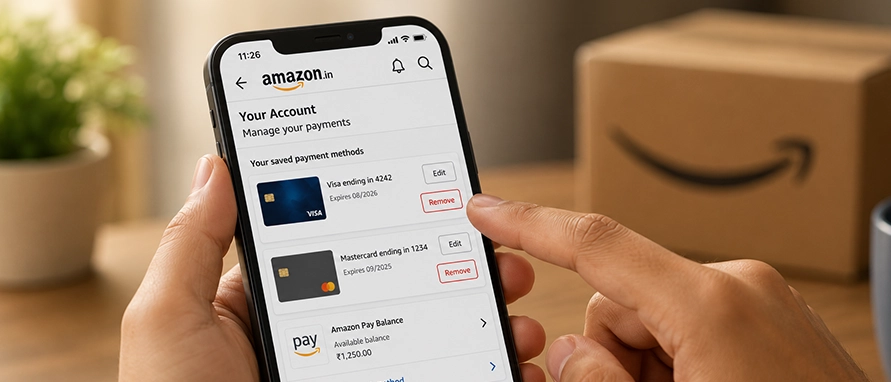
Got an expired card sitting on Amazon? Or just want to clean up your saved payment methods? Here's exactly how to remove a credit card from your Amazon account — on desktop, app, and mobile browser — in a few quick steps.
A few solid reasons to remove card details from Amazon:
Security. If your account gets hacked, saved cards can be used to place orders immediately. Less saved data = less risk.
Privacy. Not everyone is comfortable storing card details on a shopping platform long-term — especially for high-limit cards.
Card expired or cancelled? Outdated cards clutter your payment options and cause failed transactions at checkout. Just get rid of them.
Switched cards? If you've moved to a new card or UPI, deleting saved cards from Amazon that you no longer use prevents accidental charges on the wrong one.
Here's how to delete your credit card from Amazon on a browser:
Go to amazon.in and log in.
Click on "Hello, [Your Name]" at the top right or sign in.
Select "Your Account" from the dropdown.
Under "Ordering and Shopping Preferences", click "Payment Options".
Find the card you want to remove.
Click "Delete" next to it.
Hit "Confirm Remove" — done.
The card disappears from your account immediately and won't show up at checkout anymore.
Want to change your default payment method on Amazon first? On the same Payment Options page, click "Set as Default" next to your preferred card before deleting the old one. If your card is currently the default, you must do this step first — Amazon won't let you remove it otherwise.
Here's how to delete card details in Amazon on the app (Android or iOS):
Open the Amazon app.
Tap the “You” icon at the bottom navigation menu.
Tap "Your Account".
Select "Manage Payment Methods".
Tap the card you want to remove.
Tap "Delete" and confirm.
Can't delete your card from Amazon? Here's why that happens:
It's your default payment method — set another card as default first.
It's linked to an active subscription like Amazon Prime.
There's a pending order on that card — wait for it to process.
Fix whichever applies, then remove the credit card from your Amazon account again.
Prefer the browser over the app? Here's how to remove saved cards from Amazon on mobile:
Open your browser and go to amazon.in.
Log in.
Tap the menu icon (three lines, top left).
Go to "Your Account" → "Payment Options".
Tap "Delete" next to the card you want to remove.
Confirm.
If the page looks broken or options are missing, switch to Desktop Site from your browser settings. That'll give you the full account view.
Quick checklist before you delete your card from Amazon:
Check your subscriptions. If the card is linked to Amazon Prime or another subscription, removing it without updating the payment method will cause the subscription to fail at renewal. Update it under "Manage Prime Membership" first.
Set a new default first. If it's your default card, assign another payment method as default before removing it. Amazon Pay balance can also serve as the default.
Amazon Pay is separate. Your Amazon Pay wallet balance is not affected when you remove card details from Amazon. It stays intact.
Existing orders still go through. Removing a card doesn't affect orders already placed. Those will still be charged and delivered as usual.
Ans: Log in → Your Account → Payment Options → Delete next to the card → Confirm. Works the same on desktop, app, and mobile browser.
Ans: Not directly. First set another payment method as default, then delete the old card.
Ans: It won't cancel immediately, but it'll fail to renew. Before you remove your credit card from Amazon, go to Manage Prime Membership and update the payment method there.
Ans: Your Account → Payment Options → click "Set as Default" next to the card or method you want.
Ans: It's either the default card, tied to an active subscription, or has a pending order against it. Sort that out first, then try again.
Ans: No. Your Amazon Pay balance is stored separately — deleting your card from Amazon won't touch it.
Ans: Amazon encrypts stored card data, but if you use shared devices or want to minimise risk, it's a good habit to remove card details from Amazon once you're done shopping.



Academy by Bajaj Markets

 47202
47202

Navigate the tax maze with ease! Uncover Income Tax 101, demystify jargon with Terms for Beginners, and choose between Old or New Regimes.
 165541
Unlock the world of credit! From picking the perfect card to savvy loan management, navigate wisely.
 97881
97881
Money Management and Financial Planning covers personal finance basics, setting goals, budgeting...
 28606
28606
Explore the investment cosmos! From beginner's guides to sharp-witted strategies, explore India's treasure trove of options.
 18764
18764
Discover essential insights on various types of insurance in India.
 4584
4584
Welcome to Tech in Finance, where we explore the exciting intersection of technology and finance...












 Academy